in:control User Documentation
Manuals, user guides and more for in:control devices and software.

Users
If you landed here by chance, welcome! Please use the following links.
Website: in-control.ch
Documentation: docs.in-control.ch not yet released
Configurator: configure.in-control.ch
Authors and Contributors
- All documentation files are located in the
srcfolder. - Images and other assets are located in the
assetsfolder.
We use obsidian for local editing of the documentation but feel free to use any text editor of your choice.
Contribute by opening issues or pull requests.
Currently every push to the main branch is automatically deployed to GH Pages until we reach a first release.
Credits
Many thanks to MichaelCurrin and his mdBook Quickstart Template!
Hub
The Hub is an interface device for 3rd party inputs. You can build your own input devices or connect compatible off the shelf products, like the Logitech Adaptive Gaming Kit.
Inputs
The Hub has 4 analog inputs (A1 to A4) and 6 digital inputs (D1 to D6).
| Abbreviation | Image | Hub inputs | Use cases |
|---|---|---|---|
| TRRS |  | A1/A2, A3/A4, D1/D5, D2/D6 | dual channel active devices, i.e joystick with 2 axes |
| TRS |  | All | dual channel passive inputs, i.e. 2 buttons |
| TS |  | D1 to D4 | single channel inputs, i.e. 1 button |
The 3.5 mm jack sockets have the following input assignments, see also Phone connector (audio).
| Input | T | R | R | S |
|---|---|---|---|---|
| A1 | A2 | A1 | A2 | 3.3V | GND |
| A3 | A4 | A3 | A4 | 3.3V | GND |
| D1 | D5 | D1 | D5 | n.c. | GND |
| D2 | D6 | D2 | D6 | n.c. | GND |
| D3 | D3 | n.c. | n.c. | GND |
| D4 | D4 | n.c. | n.c. | GND |
Settings
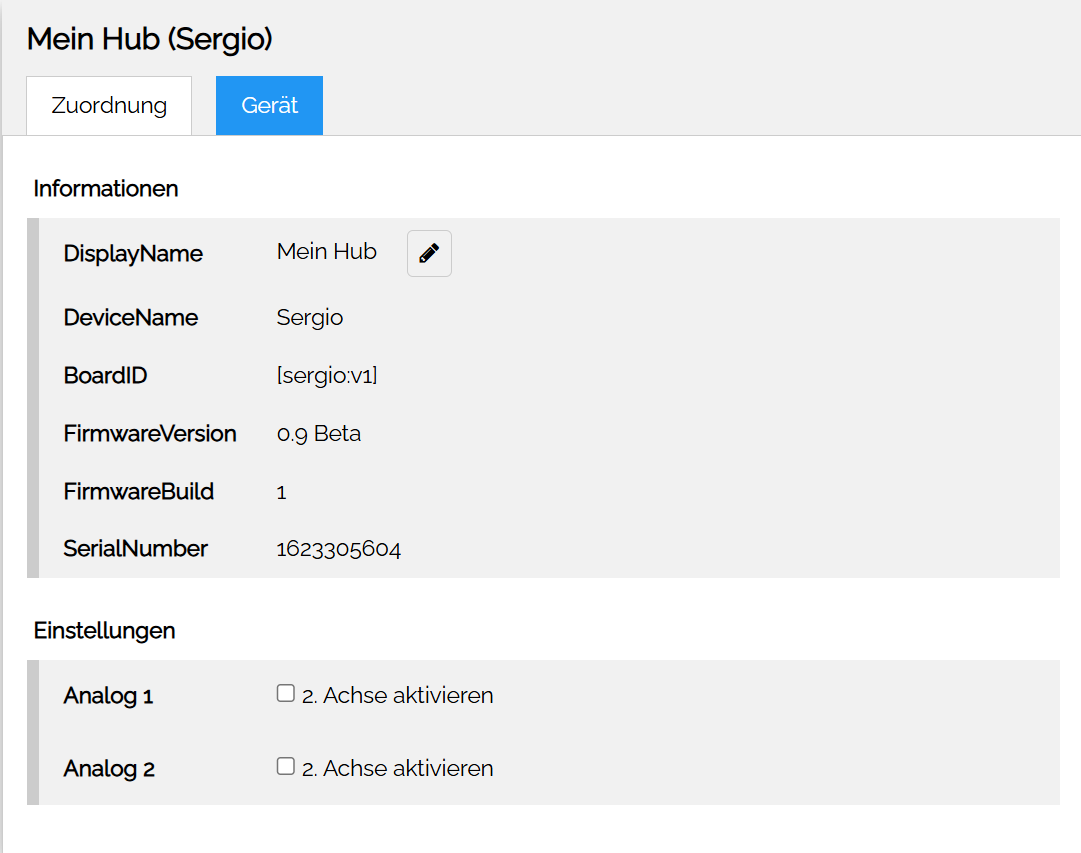
On Input 1 and 2, the Hub accepts stereo jack plugs with two analog signals. This is convenient for building Joysticks or other two-axis devices with just one cable. The second analog channel for Input 1 and 2 can be activated in the device settings.
Buttons
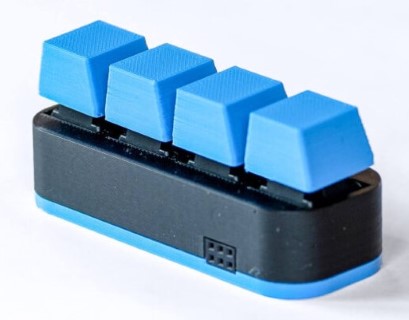
The main device has 4 buttons (CHERRY MX BLUE) in a row. It can be extended with two more rows of the Button Extensions module to make it an 8 or 16 buttons device.
Mouse
Configurator
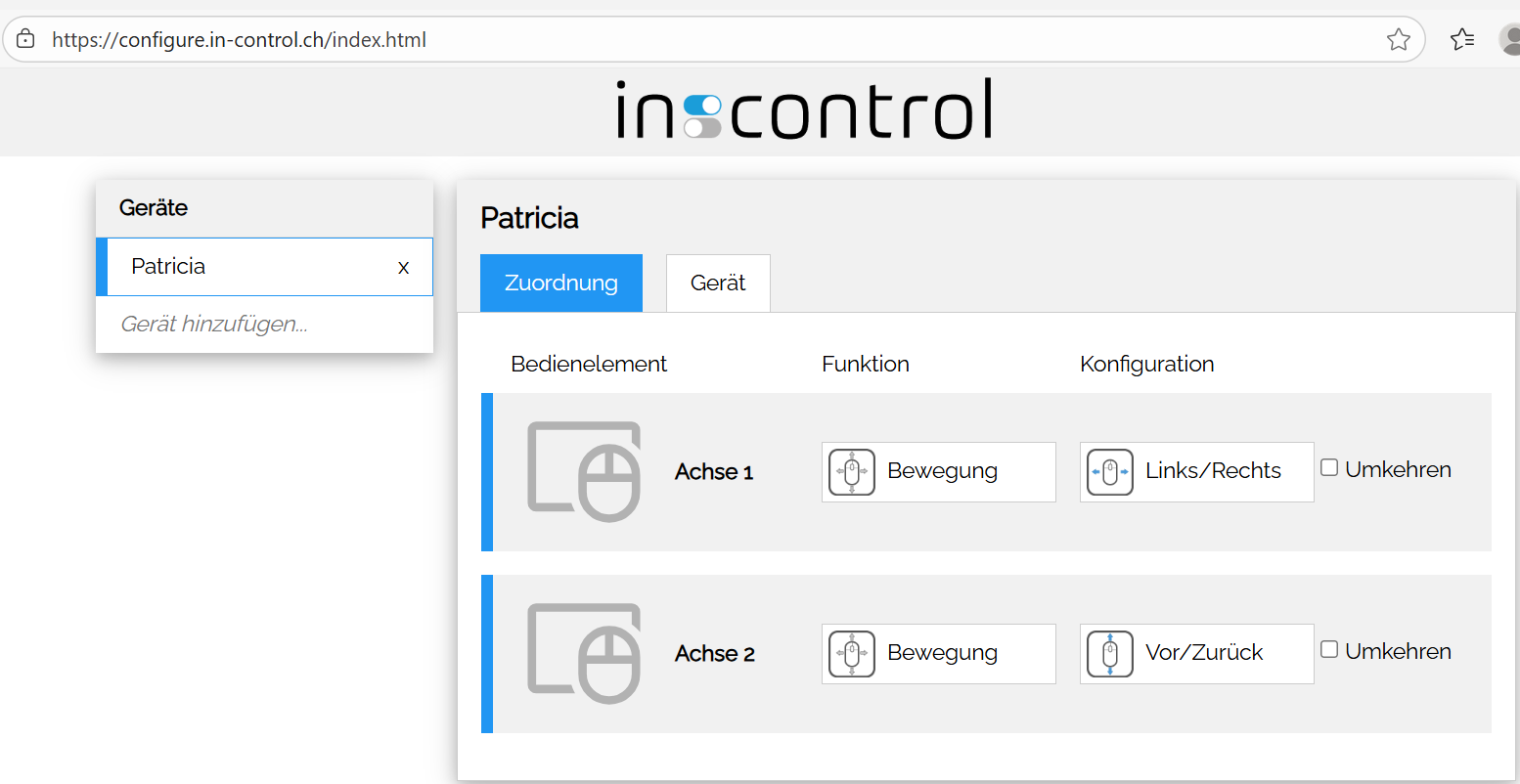
The Configurator is a web app to configure in:control devices. It is available at configure.in-control.ch.
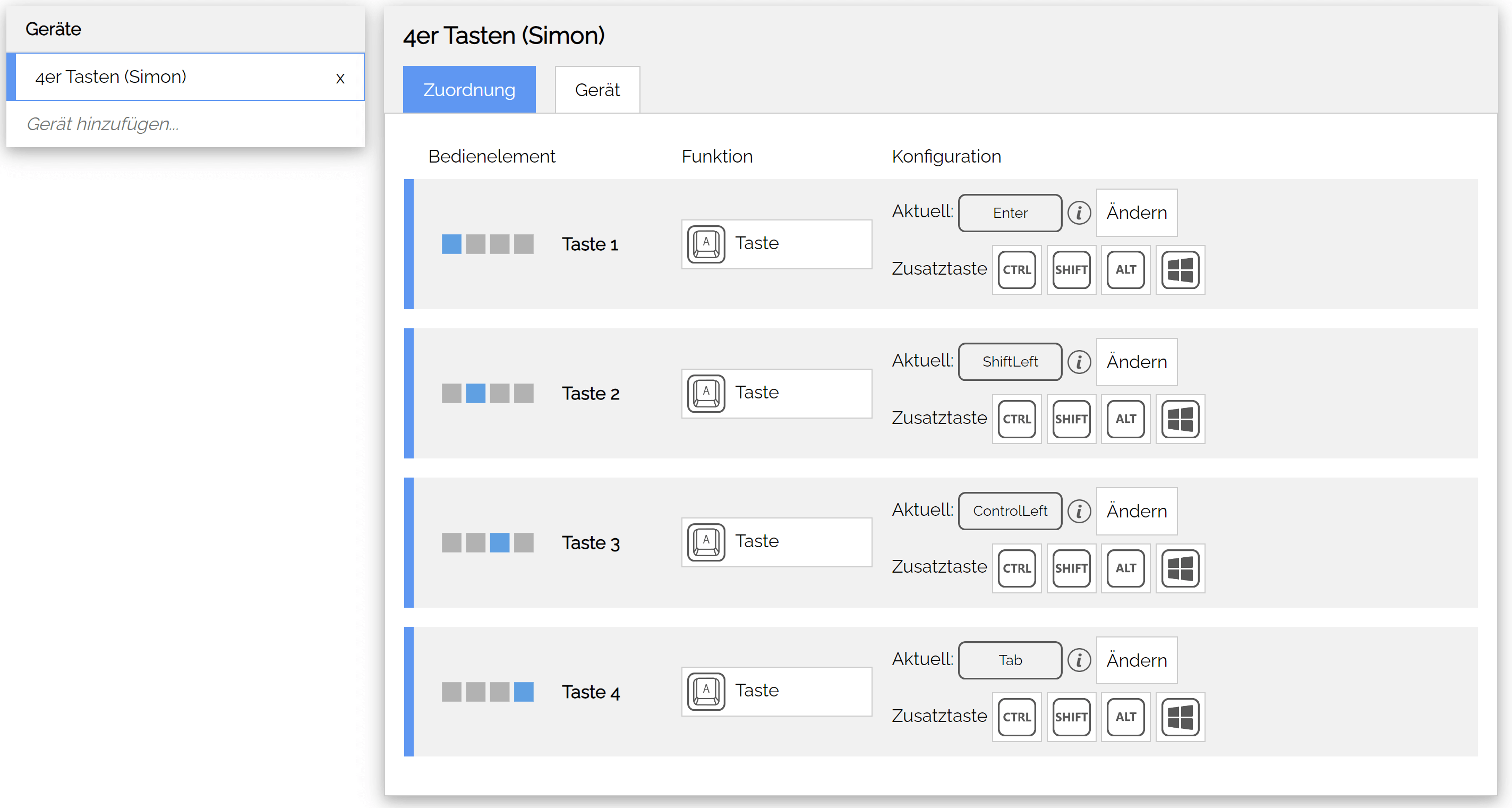
Follow the steps for an initial configuration.
- Plug in your device with an USB cable
- Click the pop-up to open the Configurator, or open it by following the link above.
The Configurator appears empty because devices must be paired with the browser before they can communicate.
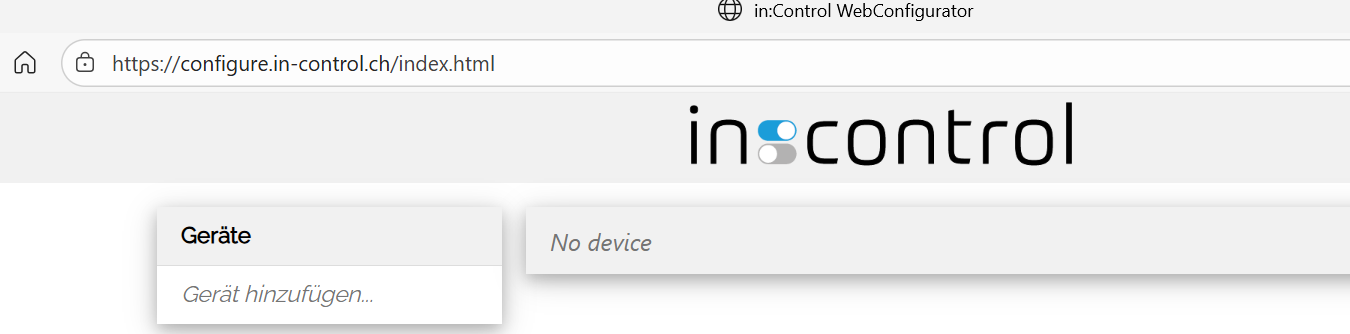
- In the device list, click add device…
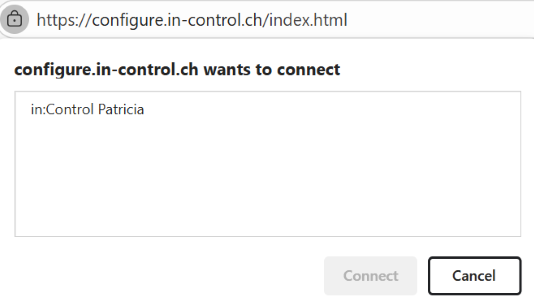
- A dialog appears. Choose the in:control device and select connect.
- The device appears in the device list and is selected automatically.
From here the device connects automatically with the Configurator when it’s opened on the same PC and browser. For using an other PC or browser, pair the device with the new setup.